Both sides of every call. No root.
Phone calls, and WhatsApp, Telegram, Viber and Google Meet calls. No computer and no second app — the phone pairs with its own Wireless debugging and sets itself up.

- Free and open source
- No account, no cloud
- Built and checked by F-Droid
Why JemRec
Android stopped letting apps record calls years ago. JemRec records them anyway, both sides, without asking you to root your phone.
Both sides of every call
Phone calls, and WhatsApp, Telegram, Viber and Google Meet calls on Android 14 or newer.
No root, no computer, no second app
The phone pairs with its own Wireless debugging and sets itself up, once, in a few minutes.
Nothing leaves your phone
No account, no cloud, no analytics. The only network JemRec uses is the phone talking to itself.
It tells you when something is wrong
A recording that came out silent, a recorder that is down, a call that went by unrecorded — each gets a notification, so you do not find out on the day you need the call.
Your rules
Record every call or be asked first, keep only some people’s calls, and let old or very short recordings clear themselves away.
Free, open and verifiable
Apache-2.0, and F-Droid rebuilds every release from this source and checks it matches, byte for byte.
Get started
About three minutes, on the phone, once.
Install it
From F-Droid, or the APK from the Releases page — the same signed file either way, so each can update the other.
Trouble installing? →Follow the setup
JemRec walks you through it and watches for each step: Developer options, USB and Wireless debugging (no cable needed), and pairing — the phone pairs with itself. Type the six-digit code into JemRec’s notification, not the app.
The setup, step by step →Let it keep running
On phones that stop apps in the background, setup asks you to allow JemRec there, and a notification says so if the phone stops it anyway or holds back its restart. Allowed, the recorder is back seconds after a restart and Wi-Fi.
Stopped in the background →
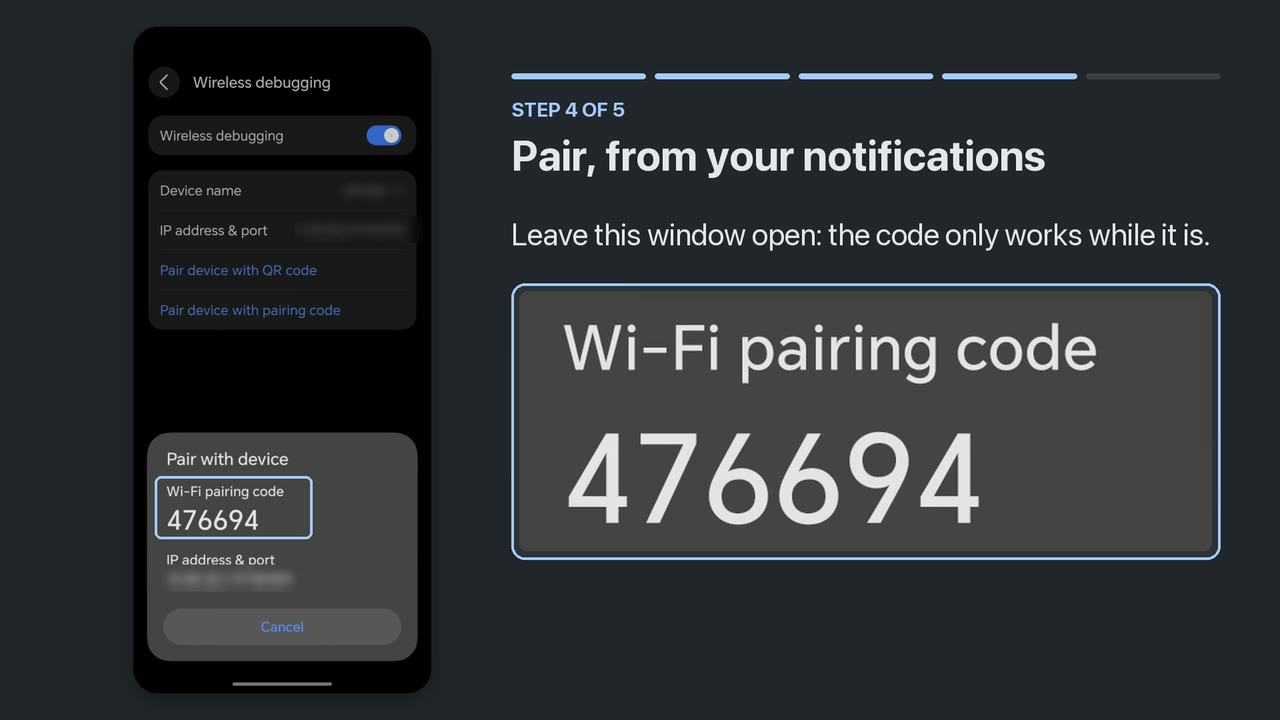
Then run Settings → Diagnostics → Self-test: it answers, in about a second, whether your phone hands over both sides of a call. The full manual says what to do when a step misbehaves.
Recording calls is your responsibility. Consent law differs by country and sometimes by state: one party, all parties, or a spoken notice. JemRec records what you tell it to and warns nobody on your behalf.
A look around
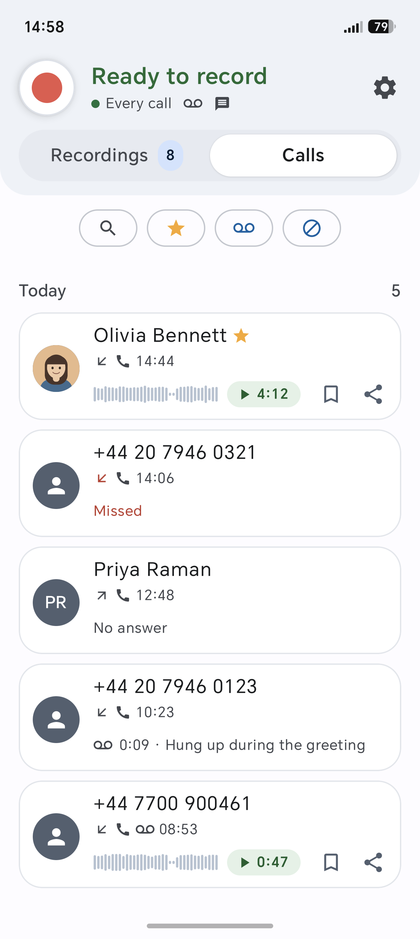
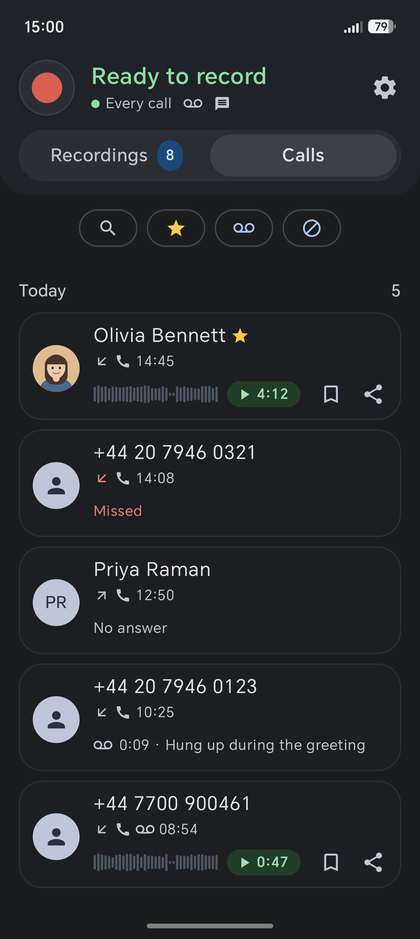
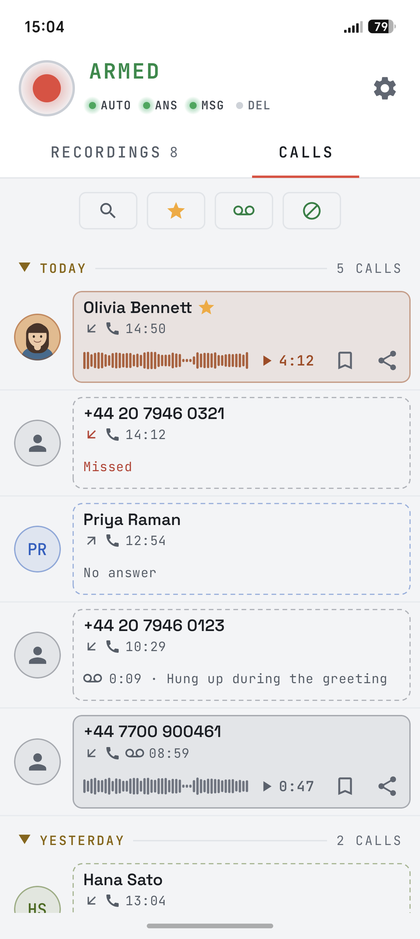
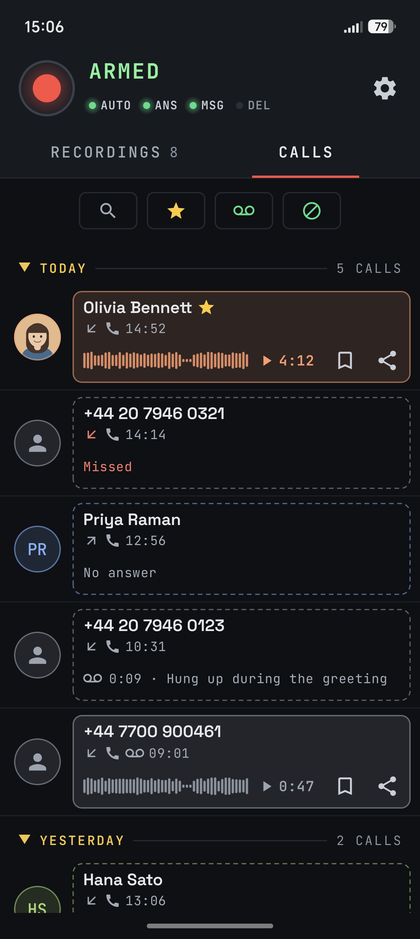
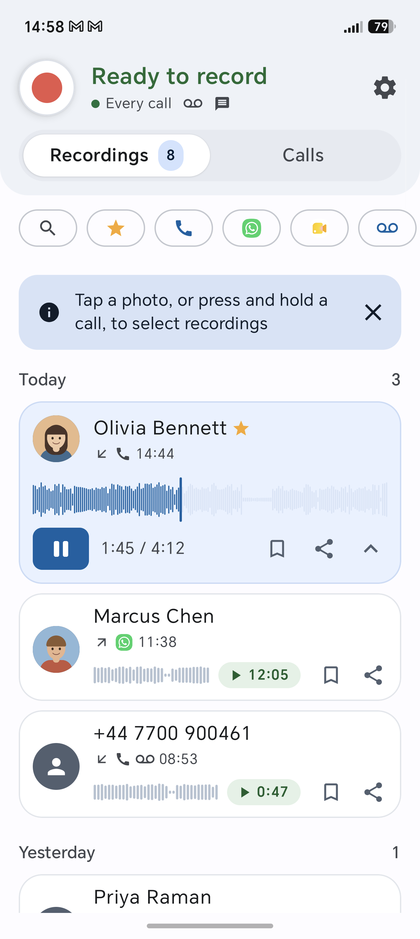
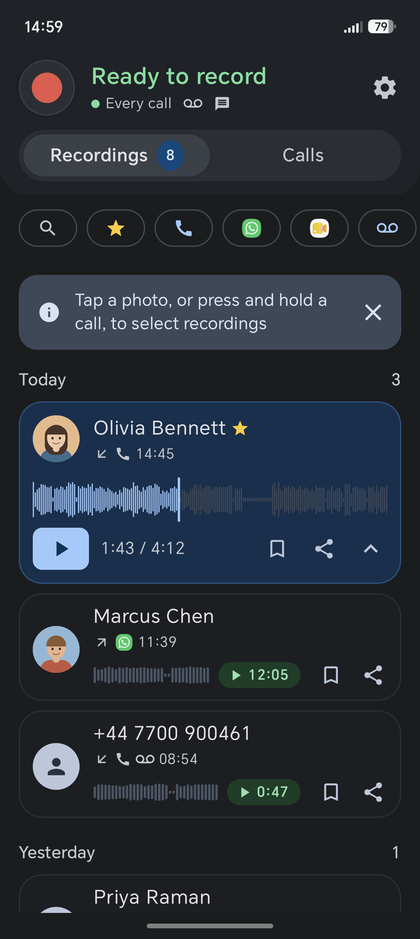
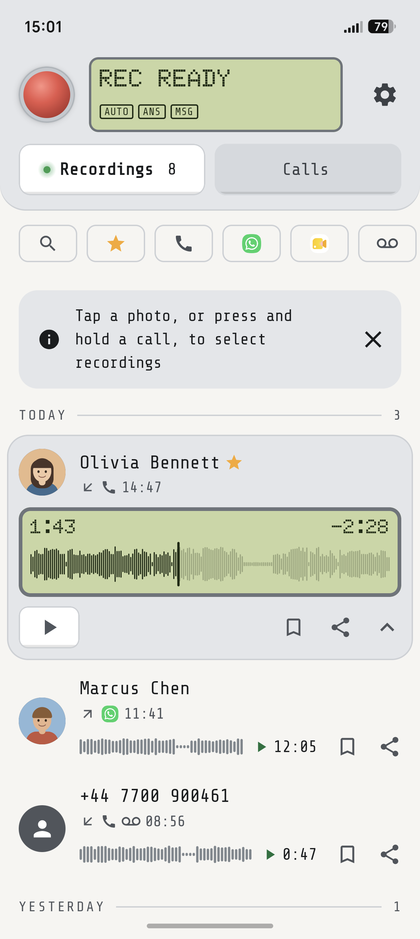
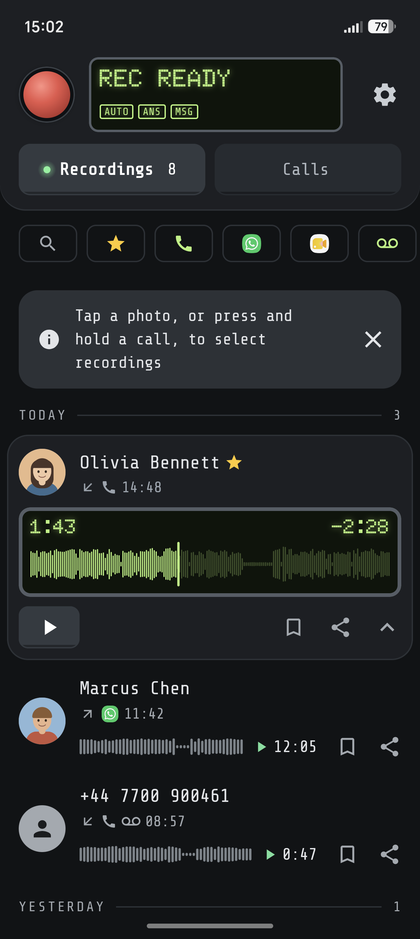
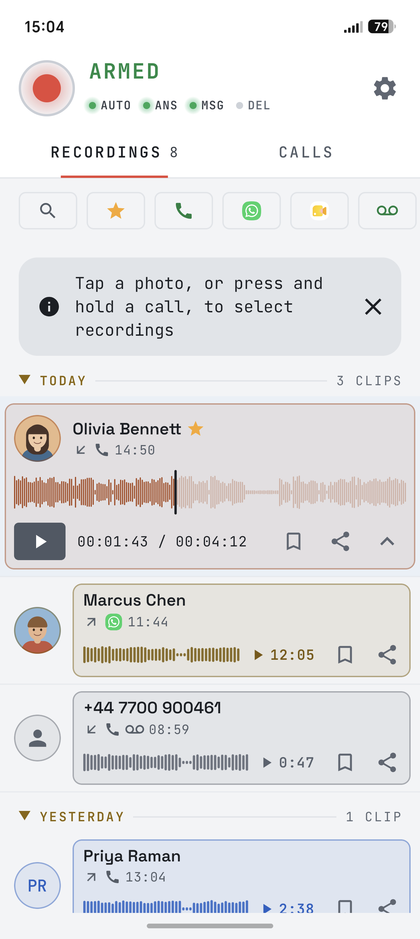
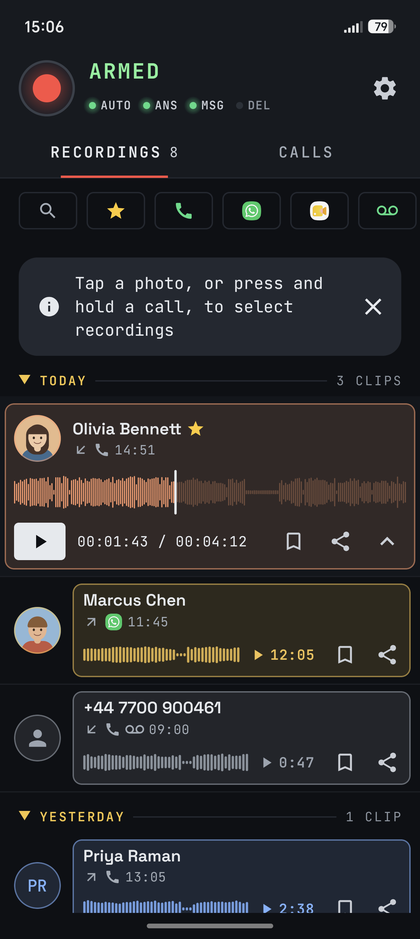
Pick a screen from the strip; tap the phone to see it full size.
Recordings
By day, with who each call was with.
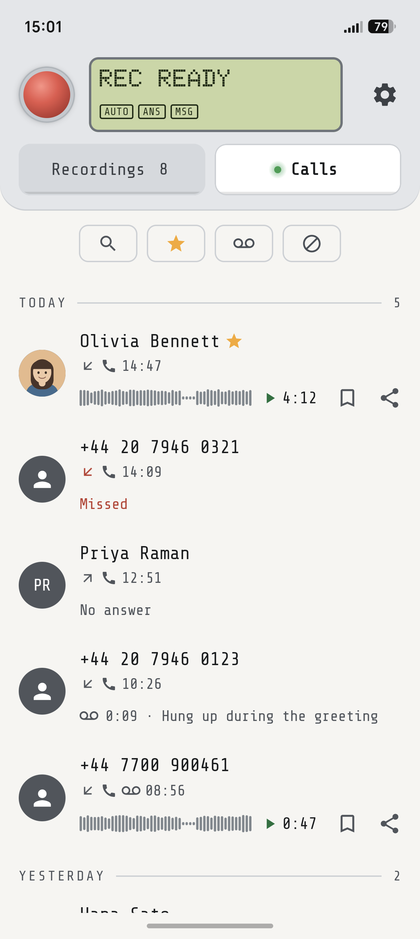
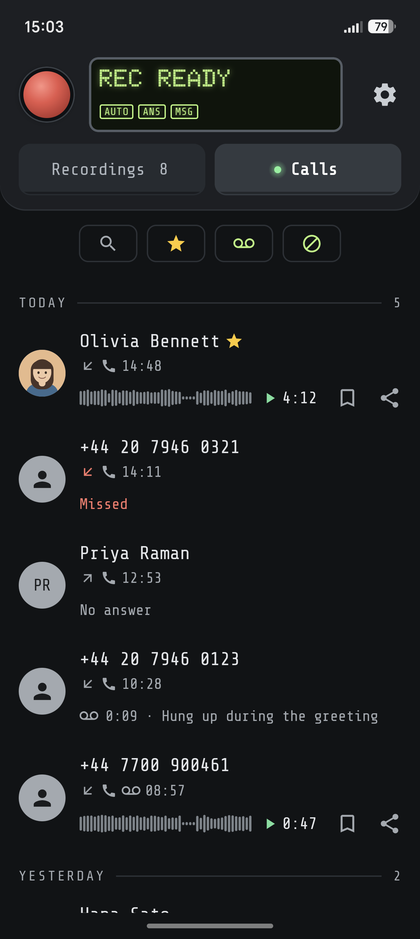
The app comes in three looks, each following your phone’s light or dark; these follow the page’s — the buttons at the top switch the look and the theme. The people in them do not exist: a screenshot of a call recorder is a screenshot of someone’s calls, so the list is filled with invented ones. Everything else is real.
What you can do
Each of these has its section in the manual.
Record every call, or be asked
Automatic mode records every call; ask-first records nothing until you tap Record. A Quick Settings tile turns recording on and off, and a long press on it opens JemRec.
More →Start at the answer
Exact call tracking cuts the ringing, skips calls nobody answered, and splits call waiting into one recording per call.
More →Keep only the calls you want
All your contacts, all but some, only some, or none — and other numbers on their own switch.
More →Exact call tracking keeps only the conversation
See every call
The Calls tab is your call log, each call with its recording — or, if there is none, why. Search either list, or narrow it with a tap.
More →Messenger calls
WhatsApp, Telegram, Viber, and Google Meet calls and meetings, both sides, each switched on separately, with the caller’s name from the app’s notification. Android 14+.
More →Play, keep, clean up
A call plays as its waveform, to see where people talk, and plays on with the screen off, under the phone’s media controls; a keep mark, a 30-day Recently deleted, and auto-delete for old or very short ones.
More →Name files your way
By date and time, with the caller, with the phone number for a program that sorts them, or the way Honor’s Phone app plays them from its call history.
More →Hear about problems
A notification after each call, and one when a recording is silent, the recorder is down, a call went unrecorded, or the phone stopped JemRec or held it back in the background. A call that came out wrong? Copy a report in Diagnostics says how it was recorded, for an issue on GitHub.
More → JemRec · nowOlivia Bennett
Recorded, 4:12
PlayShareDeleteJemRec · 2 minLast call recorded, but silentMarcus Chen, 12:05. No sound came through. This happens on calls over Wi-Fi calling, and on some phones always. Run the self-test to check this phone.
PlaySelf-testDeleteJemRec · 5 minJemRec is not recording callsAndroid has not allowed Wireless debugging on this Wi-Fi, and JemRec needs it for a few seconds to restart the recorder. Tap Allow this Wi-Fi, tick Always allow on this network, and tap Allow.
Allow this Wi-FiAnswering machine
Off until you switch it on. Answers a phone call you have not taken after 5 to 30 seconds — after two rings when Do Not Disturb would silence the caller — plays the greeting you recorded and keeps the message, by the same rules as recording. Take the call or hang up from its notification while they speak. It stands down for a day after you call an emergency number. A test call tells you whether it works on your phone.
More →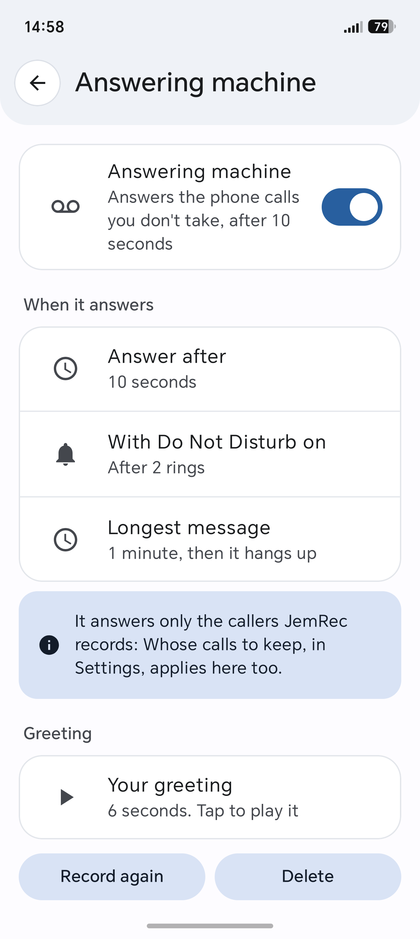
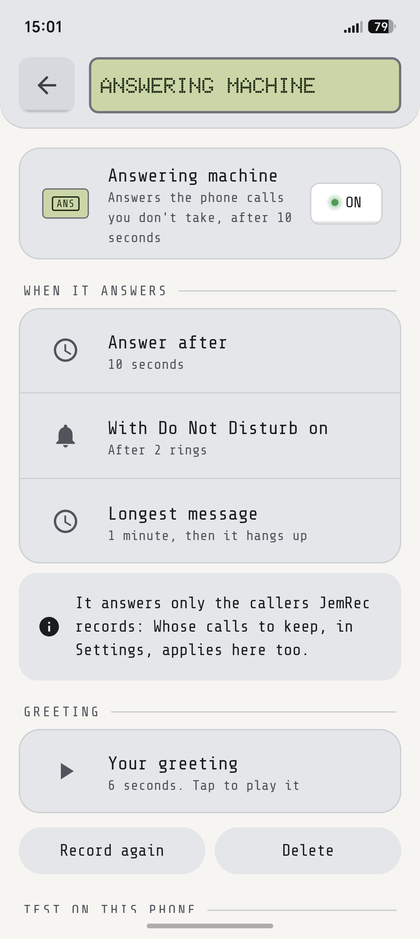
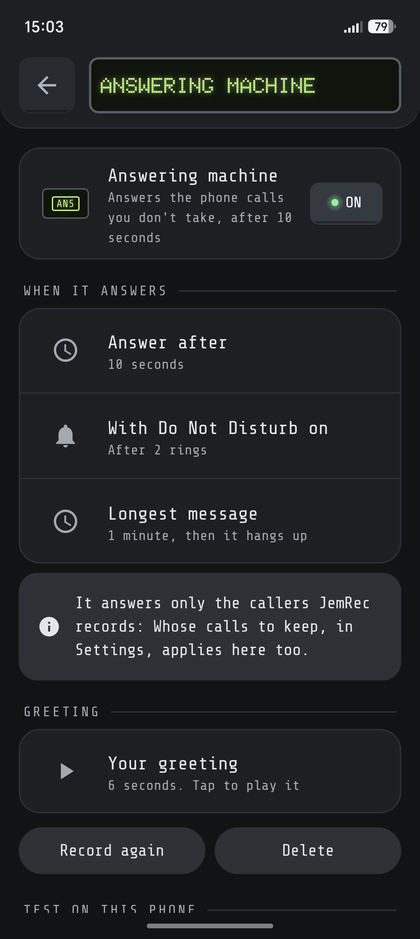
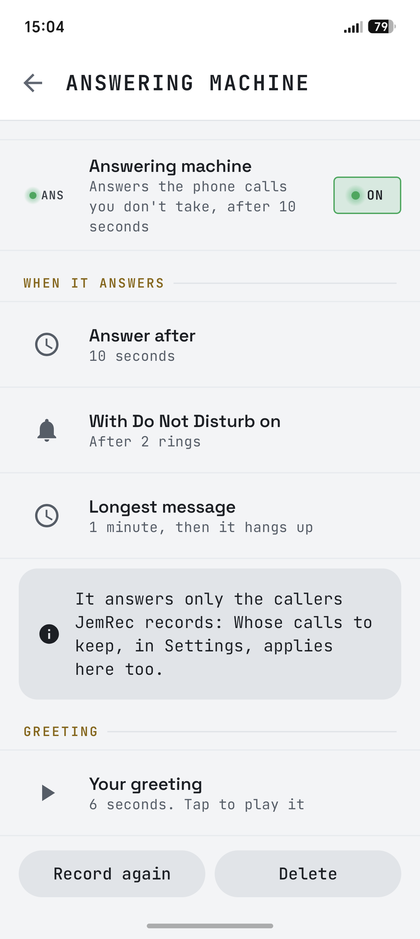
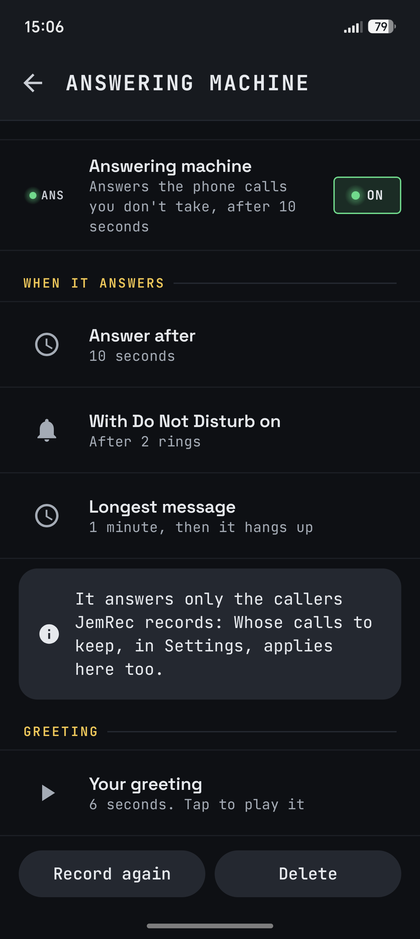
Three looks
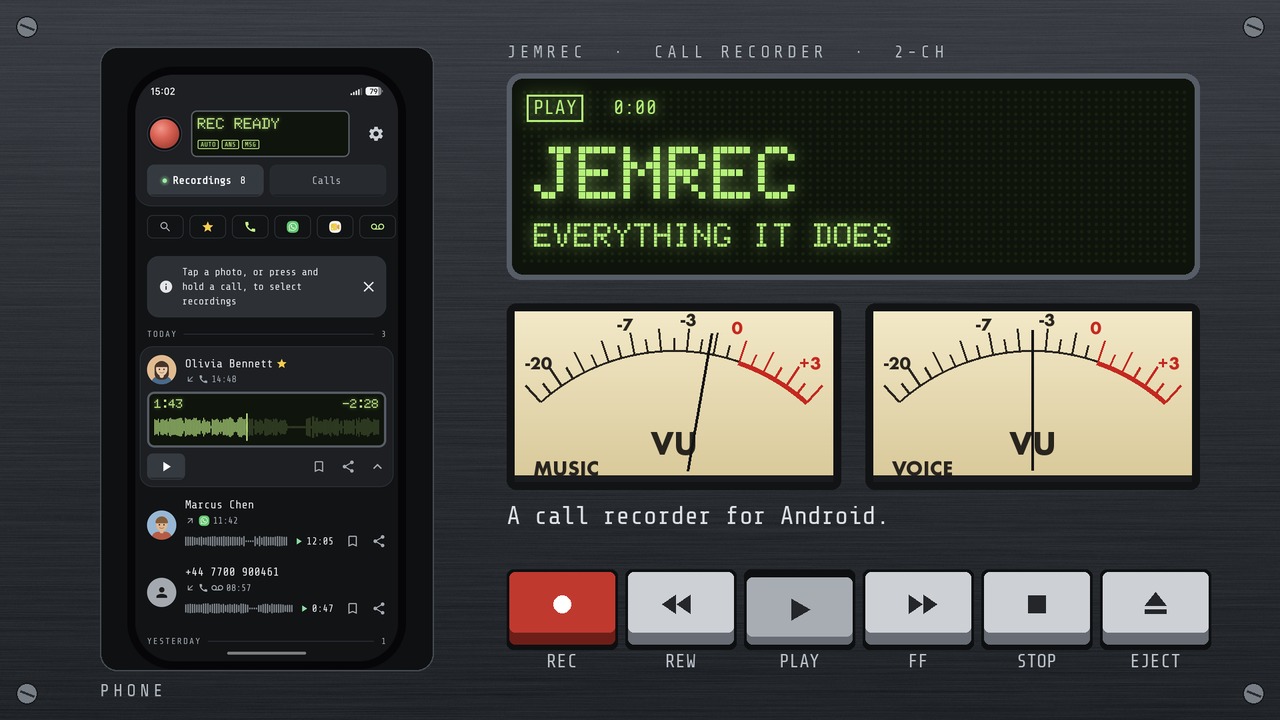
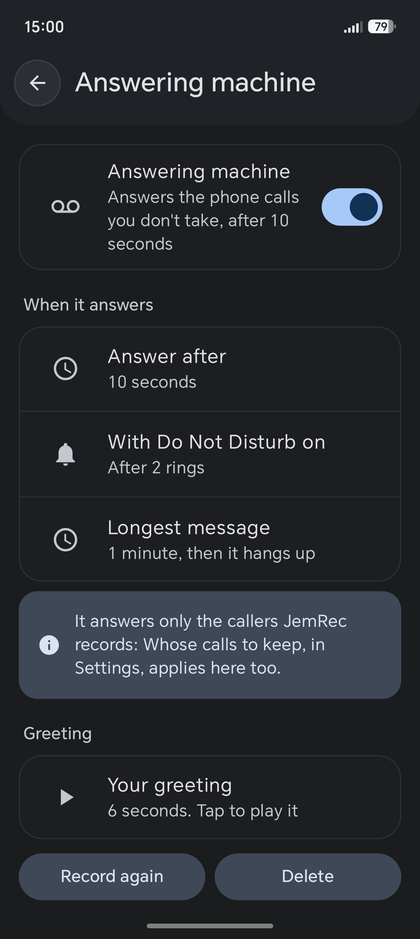
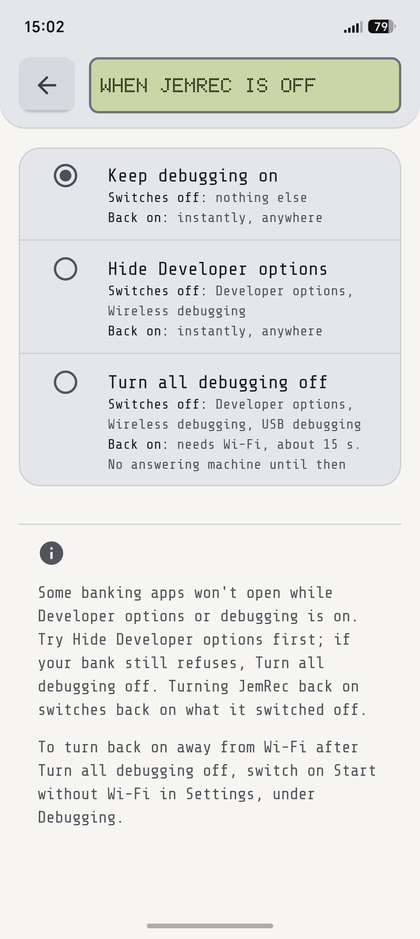
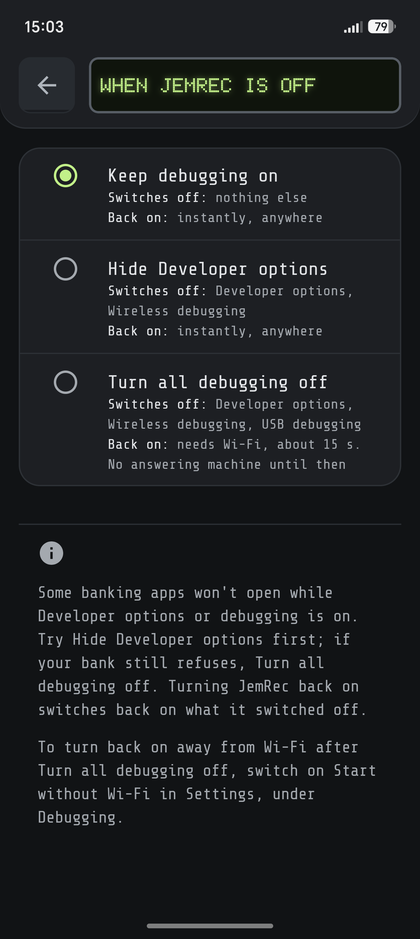
Memo, calm and simple; Deck, a pocket recorder with an LCD and a REC key; Multitrack, a sound editor with a colour for each caller. Each light, dark or as the phone, in Settings → Theme.
More →Tap one to see this site in that look.
Open your banking app
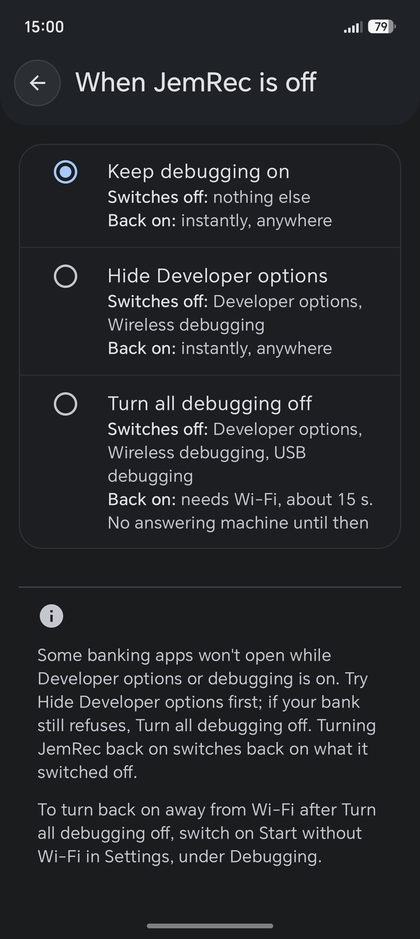
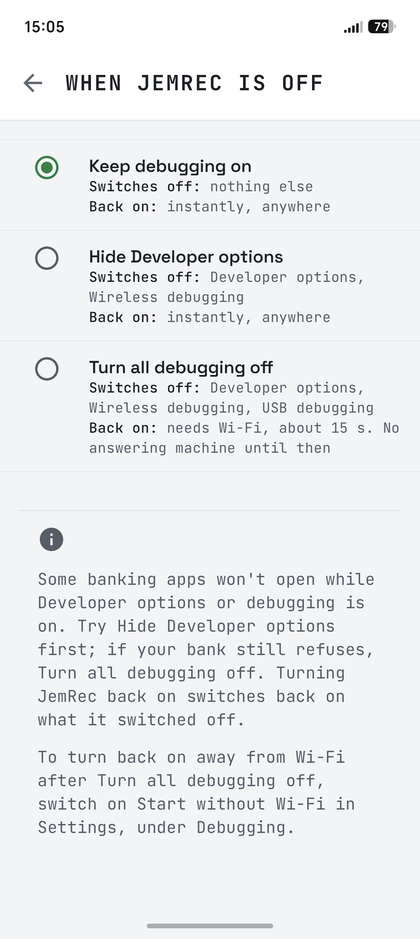
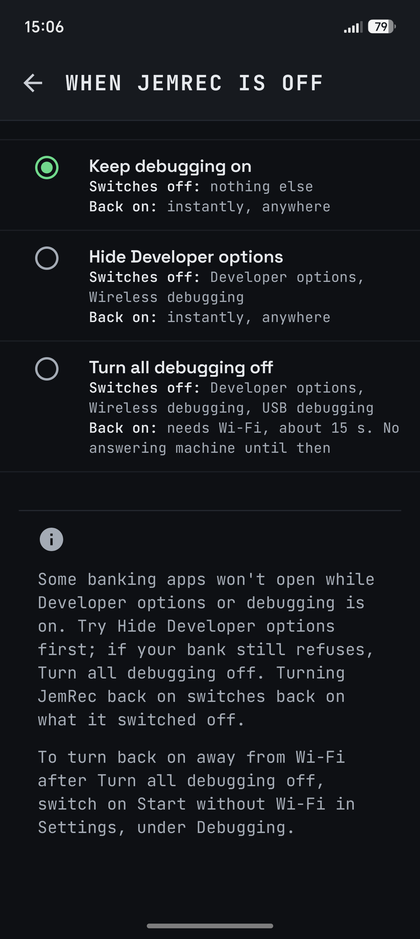
Some banking apps won’t open while Developer options or debugging is on. Turning JemRec off can hide Developer options too, or switch all debugging off; turning it on puts back what it switched off — away from Wi-Fi too, with Start without Wi-Fi. Settings → When JemRec is off.
More →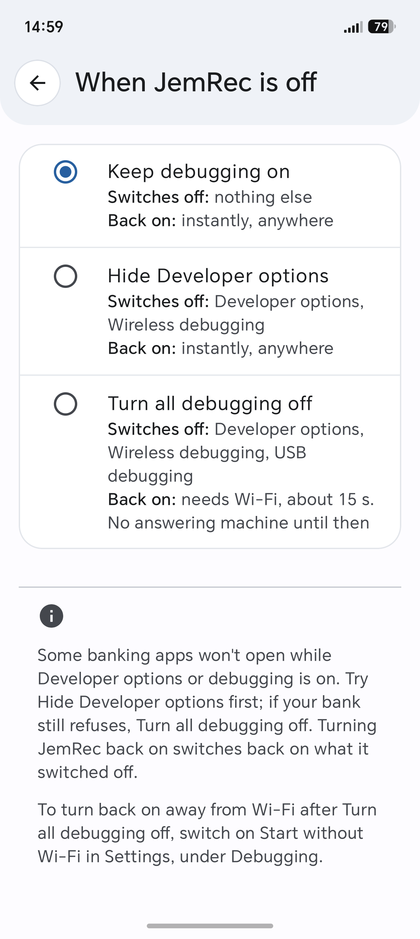
Recordings are Opus files in the phone’s standard
Recordings/JemRec folder, where any file manager or music app
can open them — or in a folder you choose.
How it works
Android’s voice-call audio source carries both sides
of a call, but only system-level identities may read it — and
the one an ADB session runs as, the shell, is among
them. Getting a shell normally takes a computer, root, or a helper app
like Shizuku. JemRec makes the phone its own computer:
- The app pairs with the phone’s own Wireless debugging — the same pairing a laptop does, with both ends on the same handset.
- For a few seconds, it uses that session to start a small recorder that runs as the shell, then closes it. The recorder outlives the session.
- The recorder watches the calls and writes each one to a file itself, so a phone that freezes background apps cannot cut a recording short.
- The app collects the finished file over a socket on which the recorder and the app each prove who they are.
Wi-Fi is needed only to start the recorder — after a reboot, say — never to record.
The design, and the measurements behind each decision →Will it work on your phone?
Developer options and Wireless debugging are on every Android phone, though the menu they live in differs by make; JemRec names the right path for yours. OPPO, OnePlus and realme phones on their own systems (ColorOS, OxygenOS, realme UI) need one more switch there, and setup names that too.
What it records, by Android version
Both sides recorded on five phones
| Android | 12 | 13 | 14 | 15 | 16 | 17 |
|---|---|---|---|---|---|---|
| Phone calls | Android 12 and newer | |||||
| Messenger calls | Android does not allow it | WhatsApp, Telegram, Viber, Google Meet | ||||
- Honor Magic 8 ProMagicOS 10 and 11, Android 16 and 17 — the phone it was developed on
- Samsung Galaxy S20One UI
- Samsung Galaxy S23One UI, Android 16 — over Wi-Fi Calling too
- Samsung Galaxy M34One UI 8.5, Android 16 — over Wi-Fi Calling too, as its owner reported
- OnePlusLineageOS 23
Google Meet was tested on the Honor: calls both ways and a meeting. Signal takes the same path as the other messengers and has not been tested yet.
Five is not a compatibility list. The one thing nobody can promise for a phone they have not held is its audio hardware: some hand over both sides of the call, some one, some silence. The Self-test answers it on yours in about a second.
The answering machine has been tried on two phones: the Honor, on 2G calls (its carrier would not register it for VoLTE), and a Galaxy S23 over Wi-Fi Calling. Whether a phone carries a greeting to the caller is up to its audio hardware too, so the answering machine has its own checks and a test call.
Privacy and permissions
JemRec has no servers, no accounts and no analytics: what it records stays on your phone.
No microphone permission
The app never records; the recorder does the capturing — calls, and your answering-machine greeting.
Nothing leaves the phone
No account, no server, no analytics, and nothing is collected about you. Copy a report in Diagnostics puts how the last call was recorded on the clipboard, with no number, name or sound in it, only when you tap it.
Calls and contacts only if you allow them
To name callers, keep calls by who they were with, and notice a call that went unrecorded. Everything works without them.
No caller on the lock screen
While a recording plays, the phone’s media controls name the caller only once it is unlocked; locked, they say Call recording.
Debugging stays on while JemRec is on
The recorder needs it; while JemRec is off it can go too (Settings → When JemRec is off). A computer you have paired can connect over the same Wi-Fi, so now and then check Wireless debugging → Paired devices. With Start without Wi-Fi on, port 5555 is open too, to every network the phone joins, and announced there by the phone’s serial number.
Questions
Something else? Ask in Discussions, where ideas go too. A call that came out wrong is worth an issue, with Copy a report from Diagnostics, tapped before the next call.
Does it really record both sides?
Yes, where the phone’s audio hardware hands both sides over — which it did on every phone above. The Self-test tells you for yours in about a second. In a messenger call each side has a channel of its own, you on the left and the other person on the right; a phone call has them so where the phone keeps the two apart, as the Honor does, and on others — a Pixel, by one report — both channels carry the same mix. On speakerphone, a messenger call’s other person is heard on your side too: your side is the plain microphone, without the call app’s echo cancellation. A call that still comes out with one side — over Wi-Fi Calling, say — is worth an issue on GitHub: tap Copy a report in Diagnostics right after it and paste that in.
Does it record Google Meet?
Yes, calls and meetings, both sides, on Android 14 or newer — once you switch Google Meet on under Messenger calls. Like the messengers, it is off until you do. Meet puts its calls through Android’s own call service, and up to 0.21 JemRec took them for phone calls and recorded every one, meetings included. Now a call is a phone call only when Android says the phone itself is in one.
Will callers hear my greeting?
On the two phones it has been tried on, yes. No app can play sound into a call, so the recorder does it as the shell: on the Honor through an output Android calls in-call music, on a Galaxy S23 over Wi-Fi Calling through Android's call-screening route; not every phone has either. Before you switch the answering machine on, its Checks tell you in a second whether yours does, and a Test call settles it for that kind of call: 2G, VoLTE and Wi-Fi Calling differ. Your microphone is muted while the greeting plays and the message is left, so the caller hears your greeting and nothing of your room.
Why does it need Wi-Fi?
Only to start the recorder: that is the one step that needs Wireless debugging, which Android runs over Wi-Fi. Once started, the recorder carries on with Wi-Fi off, on mobile data, anywhere. A reboot stops it, and the next few seconds of Wi-Fi bring it back by themselves (see Get started, step 3). Unplugging the phone from a computer can stop it too (a charger does not); on Wi-Fi it is back within seconds, by itself. With the screen off, step 3 matters here as well: without it, an Honor’s battery manager kept the recorder down for about four minutes in two tests of three, and 8.5 minutes in another. Until then nothing is recorded — the header says so, a notification says the phone held JemRec back the moment it lets JemRec run again, and one says the recorder is down if it stays down two minutes. And if When JemRec is off is set to Turn all debugging off, turning JemRec back on needs Wi-Fi too. Settings → Start without Wi-Fi takes the Wi-Fi away from all of that until the phone restarts: it opens debugging port 5555, which the recorder can be started over with no network at all. After a restart, the first start needs Wi-Fi once, as before. The cost is the open port, on every network the phone joins whenever USB debugging is on — unless Turn all debugging off goes with JemRec.
Why isn’t it on Google Play?
Play removed call recorders in 2022 by forbidding the Accessibility API for recording, and no policy change since has re-opened the door. That is a distribution decision, not a technical one — the app itself never needed Play, and F-Droid asks only that a build be free software and reproducible from its source, which this one is. It never will be on Play.
Is recording calls legal?
It depends on where you and the other person are: some places need one party’s consent, some everyone’s, some a spoken notice. That is your responsibility; JemRec records what you tell it to and warns nobody on your behalf.
Where are my recordings, and what happens to them if I uninstall?
In the phone’s standard Recordings/JemRec folder (or the folder you chose), as Opus files any music app can play; Share can also convert one to .m4a for iPhones and Macs. They are yours rather than the app’s, so they stay when JemRec is uninstalled — delete them first if you want them gone. Deleted ones wait in Recently deleted for 30 days. Installed again, JemRec shows them as they were, once you let it read them (it asks): each recording carries its own marks — a message, kept, who a messenger call was with — inside the file.
Setup says Android would not let JemRec change debugging settings
Your phone refuses JemRec the one setting setup grants it until a switch of the phone’s own is set, and the card names it. On an OPPO, OnePlus or realme phone it is Disable system optimization, the last switch in Developer options’ Apps section (Disable permission monitoring on older ones; where it says just Permission monitoring, turn that off instead); some show it only in English, so if it is not there, set the phone’s language to English, turn it on and set the language back. On a Xiaomi it is USB debugging (Security settings). Then tap Try again. Setup does not finish without that setting: it is what lets JemRec turn Wireless debugging back on after a restart. Leave it that way afterwards: the recorder needs it too, to turn debugging off when JemRec is uninstalled. Reported from two OnePlus phones (issues #61 and #64); we have none to try it on.
My banking app won’t open while debugging is on
Choose in Settings → When JemRec is off what goes off with JemRec, then turn JemRec off — with the record button or the Quick Settings tile — before you open the bank. Hide Developer options switches Developer options and Wireless debugging off; USB debugging stays on, so JemRec keeps its recorder and turns back on instantly, anywhere. Turn all debugging off switches USB debugging off too, and the recorder with it: turning JemRec back on then needs Wi-Fi and takes about 15 seconds, the answering machine is off until then, and away from Wi-Fi JemRec asks first — unless Start without Wi-Fi is on (Settings → Debugging): then it comes back anywhere, on mobile data or none, until the phone restarts. Try the first; if your bank still refuses, the second. With Start without Wi-Fi on, the first leaves debugging port 5555 open while JemRec is off, which a bank may look for too; the second closes it. Turning JemRec back on puts back what it switched off. Our own banks open with debugging on, so we could not test one that refuses — if yours needed the second choice, or neither worked, say so in issue #37.
How do I turn debugging off for good?
Uninstall JemRec first. If the recorder is running, it notices the uninstall within a few minutes, turns both debugging switches off and exits — on an OPPO, OnePlus or realme phone only while its Disable system optimization switch is set as setup asked, or they stay on for you to turn off. Either way, once JemRec is gone nothing turns them back on. To have it off only while JemRec is off, see the question above.
Try it on your phone
Free, no account, about three minutes to set up — and the Self-test tells you in a second whether your phone hands over both sides.
JemRec is free: no ads, no account, nothing collected. If it has been useful to you, support its development on Donatello.