Setting up JemRec
Everything happens on the phone. You will not need a computer, a cable, or a second app. It takes about three minutes, and you do it once.
Every step below was walked through on an Honor Magic 8 Pro running MagicOS 10, and the screen names are the ones that actually appear there. Other phones differ in wording; the shape of the process does not, and JemRec names the right path for your phone as you go.
Installing
The easy way is F-Droid: install the F-Droid client, search for JemRec, and updates arrive like any other app's. The listing is at f-droid.org/packages/com.jemcik.jemrec. None of the rest of this section applies — F-Droid is an installer the phone already trusts once you have allowed it.
Or download the APK from the project's Releases page and open it. Android asks whether to allow installing from whatever you opened it with — a browser, or a file manager — and that permission is granted per app, not once for the phone.
Either way you get the same file. F-Droid builds each release on their own machine, checks the result against the APK on the Releases page byte for byte, and publishes this project's signed APK rather than one of their own — so whichever way you installed it, the other can update it in place, with no uninstall and no pairing again.
Play Protect may object, and what it takes differs by phone. It warns about apps it has not seen before, which is every app that is not on Google Play, so this is not a judgement about JemRec. Three phones, three outcomes:
| Phone | What happened |
|---|---|
| Honor Magic 8 Pro | Installed with no complaint. |
| Samsung Galaxy S20 | Refused. Turning Play Protect off long enough to install, then back on, worked — it is in the Play Store under your profile picture → Play Protect → Settings. |
| OnePlus on LineageOS | Refused when the download was opened from the browser. Opening the same file from the Files app installed it. |
If yours refuses, those are the two things to try, in that order: open the file from a file manager rather than the browser, and only then consider turning Play Protect off for the minute it takes — and back on afterwards.
Every release is signed with the same key, so each one installs over the one before it. If you would rather check what you downloaded than trust it, apksigner verify --print-certs on the file should report SHA-256 50aeab3630f0198ea3845db51413b1ad29582f78240fa2df6fe55ba8537afdf8, the same digest the release workflow prints in its log on every run.
Step 1 — Open JemRec and allow notifications
- Open JemRec.
- It asks for notifications. Allow them.
- It also offers to read audio files, which lets it list recordings made before a reinstall. Refusing that is fine; only the old ones are hidden. (On Android 12 the recordings list asks instead, for photos and media: Android 12 has no choice for audio alone.)
Notifications are not decoration here. They are how the app tells you a call is being recorded, how it asks whether to record one, and where you will type the pairing code in step 4.
JemRec does not ask for microphone access and does not have it. The recording is done by a separate, more privileged helper that the app starts later; the app itself only collects the finished file.
Then one question. Before you switch anything on, JemRec says what stays on: USB debugging and Wireless debugging, for as long as it is installed, turned back on if they go off. Android shows a notification for as long as debugging is on, and JemRec asks whether to hide it. Either answer works. Hidden, nothing on screen reminds you that debugging is on; you can change it later in Settings.
Step 2 — Turn on Developer options
Skip this if Developer options are already on.
- Open Settings.
- Search for
build number. It usually lives under About phone, but the path differs between phones, which is why searching beats hunting. - Tap Build number seven times.
- Enter your PIN or pattern if asked.
You should see You are now a developer.
JemRec moves on by itself once it sees them on. Some phones on Android 17, Pixels from the September 2026 update among them, no longer tell apps whether Developer options are on, so JemRec cannot see it. There the card has a They are on already button: tap it once they are.
Step 3 — Turn on both debugging switches
Be on Wi-Fi before you start this. Wireless debugging only stays on while the phone has a Wi-Fi connection.
- In JemRec, tap Open settings, then search Settings for Developer options. The app also names the menu it usually lives in on your phone — though on a custom ROM such as LineageOS it is under System, whoever made the handset.
- Turn on USB debugging and Wireless debugging. Either order. No cable is needed and none should be plugged in.
- If Android asks whether to allow wireless debugging on this network, tick Always allow and tap Allow.
- Look at both switches once more. Some phones switch USB debugging off each time Developer options opens, so if it is off again when you come back to that screen, turn it on again. Once JemRec is set up, it turns it back on by itself.
Why both. Wireless debugging is the channel JemRec uses to start its recorder. USB debugging — the setting, with no cable involved — is what keeps Android's debugging service alive, and without it Wireless debugging switches itself off again before the app can connect.
On an OPPO, OnePlus or realme phone, one more switch: Disable system optimization, the last one in Developer options' Apps section (Disable permission monitoring on older ones). Turn it on, and leave it on - or, where it says just Permission monitoring, turn that off and leave it off. Without it the phone refuses the setting JemRec grants itself in step 5, and the recorder could not turn debugging off when JemRec is uninstalled. Some phones show it only in English: if it is not there, set the phone's language to English, turn it on, and set the language back.
If you see an old JemRec under Paired devices, tap the gear beside it and forget it. It is left over from a previous install and cannot be used: a reinstalled app has a new key and must pair again.
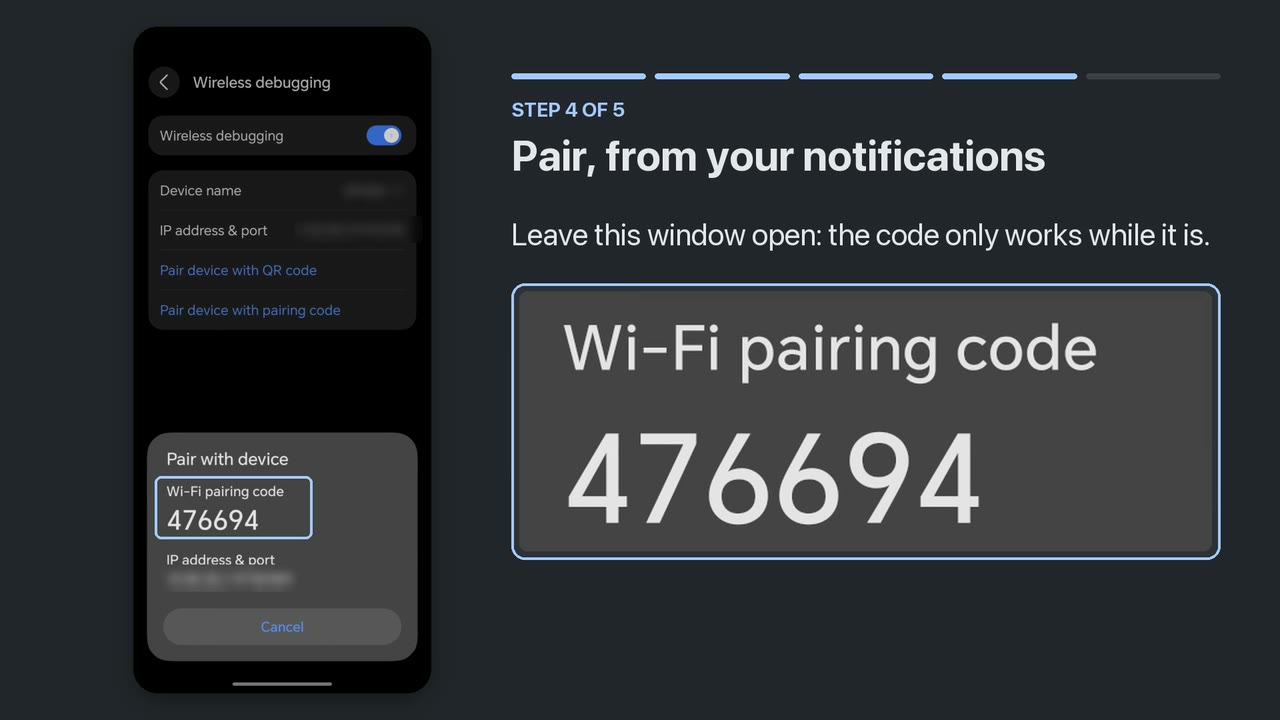
Step 4 — Pair, from your notifications
Read this step before starting it. The obvious approach does not work, and knowing why saves repeating it.
The pairing dialog exists only while Settings is on screen. Leave Settings — by switching to JemRec, or by pressing Back — and Android tears the dialog down instantly, taking the code with it.
The notification shade is different. It belongs to the system rather than to another app, so pulling it down leaves Settings running and the dialog intact. That is where you type the code, and JemRec posts the field before you go anywhere so it is already waiting.
- In JemRec, tap Open settings.
- Open Wireless debugging, then tap Pair device with pairing code. Six digits appear.
- Swipe down from the top of the screen, over that dialog.
- Find JemRec — pairing and tap Enter code.
- Type the six digits and send them.
You do not need the port number. JemRec finds that itself.
Then watch that same notification. It says what is happening, and if a debugging switch turned itself off it says which one — turn it back on and the app connects by itself. There is no need to pair again or to fetch a new code.
The code changes every time the dialog is reopened, so always use the one on screen. If you swiped the notification away, tap Show the code field again in JemRec to bring it back.
Step 5 — Wait a few seconds
JemRec does the rest by itself: it grants itself the one privileged setting it needs, starts the recorder, and begins watching for calls. When it is done the header says Ready to record.
**If it stops at Android would not let JemRec change debugging settings, the phone refuses that setting until a switch of its own is set, and the card names it: on OPPO, OnePlus and realme Disable system optimization, set as step 3 says; on Xiaomi USB debugging (Security settings), on. Then tap Try again; Open settings** beside it opens Settings.
There is no permanent notification. The app is dormant between calls — the recorder is a separate process that does the watching — so a notification appears for the length of a call, and one more when it ends, with the recording on it.
Step 6 — Test it
Call someone and talk for twenty seconds, with both of you speaking.
- During the call a notification says Recording call.
- When you hang up, a notification shows who the call was with and how long it was, with Play, Share and Delete. The recording is also at the top of JemRec's list.
Files are named like 20260907_150909_out.ogg — date, time, and in or out for the direction. They are ordinary Ogg Opus files that any player can open.
If your recording has only your own voice on it, that is the one thing no app can fix: your phone's audio hardware does not hand the other side to apps at all. Settings → Diagnostics → Self-test answers that in about a second, without ringing anybody.
Where recordings go
The phone's standard Recordings/JemRec folder, which any file manager or music app can open, and which survives uninstalling the app. To use a different folder, open Settings and tap Change under Saving to.
Choosing when to record
Record every call, in Settings, decides this.
- On, the default: every call is recorded and you are not asked.
- Off: when a call starts a notification appears with Record and Not now. Nothing is captured until you tap Record, so the opening seconds of that call are not saved. That is the honest cost of being asked, and it is why the switch is on by default.
The prompt stays up for about a minute rather than the few seconds an ordinary notification gets, and if you miss it, it waits in the shade for the rest of the call. On a locked screen you get the same question full screen.
Exact call tracking
Exact call tracking, in Settings, is on unless you turn it off. With it, Android tells JemRec when each phone call is answered and when it ends, and so:
- A recording starts when the call is answered. An outgoing call's ringing is not in it, and a call nobody answered is not saved at all.
- With call waiting, each call gets its own recording.
- Whose calls to keep decides before anything is recorded.
Tracking only reads this: it never answers, holds or ends a call, and shows no screen of its own during one. The one thing that ever answers a call is the answering machine, below, when you switch it on. Turned off, JemRec records from the moment the phone goes off-hook, as it did before 0.14, and the answering machine, which needs it, answers nothing.
Whose calls to keep
Whose calls to keep, in Settings, narrows down which calls are kept. Your contacts: all of them, all but some, only some, or none — for the last three you pick the contacts. Other numbers, a switch of its own: numbers not in your contacts, and hidden ones. Until you change either, every call is kept.
With exact call tracking, JemRec knows who a call is with while it still rings, and a call your choice leaves out is not recorded at all. Without it, who a call was with is only known once it has ended, from the call log: every call is recorded, and one your choice leaves out is deleted the moment it ends, before it is saved anywhere. Either way, if JemRec cannot tell who it was, the recording is kept. In ask-first mode, a call you tap Record on is always kept. The Calls tab marks a call that was left out.
It needs permission to read the call log and your contacts, to tell who a call was with; its screen asks for it if you have not given it.
File names
File names, in Settings, decides what a new recording is called. Recordings you already have keep their names.
- Date and time, the default:
20261020_165705_out.ogg— when the call began, and which way it went. - With the caller:
20261020_165705_out_Priya Raman.ogg— easier to find in a file manager or on a computer. - With the phone number:
20261020_165705_out_+447700900123.ogg— the number with its country code, even a contact's, for a program that sorts recordings by number. A hidden number leaves the date and time; a messenger call has no number, so its name ends with the app. - For Honor's Phone app, on a phone that has it:
Priya Raman@+447700900123_20261020165705.ogg, the name Honor's own recorder uses. Saved inSounds/CallRecord— the File names dialog has a button that opens the folder picker right there; tap Use this folder and Allow — Honor's Phone app then shows a play button on the call in its history.
The caller and the number come from exact call tracking or the call log, with permission to read the call log; without it, a recording is named by date and time. Google's Phone app has nothing like Honor's: it keeps its own recordings to itself, and no other app can add one to its call history.
Messenger calls
Messenger calls, in Settings, records WhatsApp, Telegram, Signal and Viber calls too, and Google Meet calls and meetings — both sides, you on the left channel and the other person on the right (up to JemRec 0.24, the other way round). Each app has its own switch, and all are off until you turn one on. The ones installed on your phone are listed.
It needs Android 14 or newer. Before it, Android does not let the recorder copy another app's call audio, and Settings says so instead of offering switches that would record nothing.
An app can refuse to let its calls be recorded, and Android honours that; JemRec does not try to get round it. Your side comes from the microphone without the call app's echo cancellation, so on speakerphone the other person is heard on your side as well. JemRec never takes the microphone from the call: if Android ever silences the app's own, JemRec lets go of its own at once.
These are not phone calls, so their recordings are in Recordings, marked with the app's icon, and not in the Calls tab. Whose calls to keep does not apply to them — the app's switch is the rule.
Google Meet puts its calls in the phone's call log, through Android's own call service, and up to JemRec 0.21 they were taken for phone calls: every Meet call and meeting was recorded, with no switch for it. Now Meet is recorded only if you switch it on here, and its calls stay out of the Calls tab. A phone call during a Meet call is a phone call of its own, recorded on its own - from when the Meet call ends, if that one is being recorded. Calls other apps put through that service — Gmail's, Slack's — are not recorded.
Show who called reads the caller's name, and whether the call rang first, from the app's own call notification — the only place it is said. That needs notification access, which Android grants to all notifications; JemRec keeps only that from the call notifications of the apps you switched on. It is granted over JemRec's own ADB session, so turning it on needs Wi-Fi, once.
Tested on an Honor with Viber, Telegram and WhatsApp, both directions, and with Google Meet: calls both ways and a meeting. Signal takes the same path and has not been tested yet.
The answering machine
Answering machine, in Settings, answers the phone calls you do not take, plays a greeting you recorded, and keeps what the caller says as a recording. Phone calls only: not WhatsApp, Telegram, Viber or Google Meet calls. It is off until you turn it on, and it needs two things first: your greeting, and the checks under Test on this phone.
Your greeting. Tap Record, say it, and tap Stop — 30 seconds at most. JemRec trims the silence at both ends and evens the level, because the caller hears it at full volume. Tap the row to hear it; Record again replaces it. Callers hear what you said and then a beep, nothing else.
When it answers
- Answer after — 5 to 30 seconds of ringing. Your carrier's own voicemail, if you have it, takes calls after its own timer, so this has to be shorter; once you have asked your carrier (below), the row says if its voicemail would answer first.
- With Do Not Disturb on — after two rings, about 5 seconds, for callers Do Not Disturb would silence. Callers it lets through ring as usual.
- Answer on — with two SIMs, which one: your default for calls, or both.
- Longest message — how long a caller can speak after the beep: 30 seconds, 1 minute or 2 minutes. Then JemRec hangs up, and the message is saved. Or No limit, which asks first: the call then lasts until the caller hangs up or has been silent for 30 seconds, and your phone is in it until then - a caller somewhere noisy may never count as silent.
Who it answers is not a setting of its own: it answers only the callers JemRec records, so Whose calls to keep applies to both. It never answers while you are on another call - a phone call, a messenger call or a meeting - while roaming, or while recording is off, and a caller JemRec cannot identify is left to ring. It needs Exact call tracking: turning tracking off with the machine on asks first, then turns both off.
After you call an emergency number it stands down for a day, so an emergency service calling you back - from any number - rings until you can pick up; a call the network marks as their callback is never answered. The switch says until when, and Answer again now ends the pause early, after a warning. iPhone does the same with its call screening, for 24 hours.
While it takes a message, your microphone is muted: the caller hears your greeting, the beep, and nothing of the room you are in. A notification, Taking a message, has Talk to them — the greeting stops, your microphone opens and the call is yours — and Hang up. Unmuting on the call screen takes the call too, and so does answering a second call, one waiting or one you place. A call you take is saved as an ordinary recording, not a message, from just before you took it - or from the caller's first words, if they spoke first. In Ask first it is not: taking the call ends the message there - what the caller said is kept as the message - and you are asked, as at the start of any call, whether to record the rest. Answering machines have always stopped recording when picked up.
The message is saved like any recording, from just before the caller starts speaking, so it does not begin with them listening to your greeting. It has a message icon, the Messages chip above the list shows only messages, and a notification with a sound says who left it. Auto-delete for short calls never removes one. A caller who hangs up during the greeting without a word leaves nothing; the Calls tab says Hung up during the greeting.
Test on this phone. No app can play sound into a call, so the recorder does it, as the shell, and whether a phone carries it to the caller depends on its audio hardware. These tell you:
- Checks — a second, and no call: whether the recorder has what it needs and the phone has a way to play into a call. The switch can be turned on once they pass.
- Test call — best, someone calls you: the next call within three minutes is answered with a short tone and your greeting, whoever is calling, and then you are asked whether they heard it - not in the day after an emergency call, when that caller may be them. Or JemRec calls a number that answers by itself, such as your carrier's information line, and measures what it can; never an emergency number. 2G, VoLTE and Wi-Fi Calling are kept apart, because each takes its own path.
- Carrier voicemail — asks your carrier when its voicemail answers, and can make it wait the longest it allows, 30 seconds. Your carrier's voicemail then still takes the calls JemRec does not. It is your carrier's setting, so it stays if JemRec goes.
- Copy a report — this phone and what the tests found, with nothing about any call, to paste into a report on GitHub.
Experimental. Tested on an Honor, on 2G calls (its carrier would not register it for VoLTE), and on a Galaxy S23 over Wi-Fi Calling. On a phone not tried yet, the test call is how to know.
Playing, sharing and deleting
Recordings are listed newest first, under Today, Yesterday and Earlier. Tap a recording to play it inside the app. Its waveform appears under the row - tall where someone is talking, flat where it is quiet - and a tap or a drag on it goes to that place. A call's waveform is worked out as it is saved, and an older recording's while the app is open; one played before then has a plain slider for a moment - about two and a half seconds for a 30-minute call. The chevron beside it folds the player away. The share button offers the original file or a converted copy that plays anywhere.
With the screen off. A recording plays on when the screen goes off or you leave the app, under the phone's own media controls: in the notifications, in Quick Settings, on the lock screen, and on an Honor in the pill at the top of the screen. They name the caller only once the phone is unlocked; locked, they say Call recording. A call ringing in pauses it, and it plays on after; headphones coming out pause it until you play it again. It does not start during a call. The notification's pause, or the chevron, stops it; swiping JemRec away leaves it playing, as music apps do.
Finding a recording. The chips above the list narrow it: favourites, the phone or a messenger, kept, messages. The magnifier opens a search by name, number or time. Chips of one kind add up - WhatsApp and Telegram - and different kinds narrow: and favourites. A chip only appears where it would narrow the list, and one that is on stays, so you can turn it off. While anything narrows the list, a line under the chips says what, and how many of how many are shown; Show all brings everything back.
To delete, tap a contact's photo or long-press a row to start selecting, tick what you want, and use the bin in the toolbar. It asks first and tells you how many.
Deleting is not immediate. A deleted recording goes to Recently deleted, in Settings, waits there 30 days, and can be restored until then. After that it is gone for good. In the standard Recordings folder this is Android's own trash, so other apps stop seeing the file at once.
Keep what matters. The bookmark on each row marks a recording to keep: auto-delete never touches it, and the bookmark chip above the list shows only kept recordings. To mark several, select them and use the bookmark in the toolbar.
The notification after each call has the same three buttons. Play and Share open JemRec at that recording; Delete asks first, in the notification itself, and Keep puts it back.
If a recording was made before JemRec was reinstalled, Android asks before JemRec may move it to the trash, in a dialog of its own. That is Android checking who owns the file, not JemRec asking twice.
Recordings are kept when JemRec is uninstalled, because they are yours rather than the app's — so if you want them gone, delete them before you uninstall. Recently deleted ones in the standard folder are still emptied by Android on time. In a folder you chose, they stay behind as hidden files, because removing them is JemRec's job.
Installed again, JemRec shows your recordings as they were, once you allow it to read them: which are messages, which you kept, and who each messenger call was with are written inside each recording, not only in the app. A folder you chose has to be chosen again, and until then its recordings are not listed.
The Calls tab
The Calls tab, beside Recordings, is your phone's call log, under the same day headings. A call that was recorded has the ▶ beside its length and plays on a tap; one the answering machine took says Message. A call that was not says why, where JemRec knows: In Recently deleted, Recording deleted, Left out by your rules, Too short, Recorded, not saved yet (still on the recorder, collected when it can be), Recording was off, Ask first, not recorded, Hung up during the greeting, Answering machine test. Not recorded, in red, means recording was on and automatic and nothing was saved — run the self-test. Greeting could not play, in red too, means the answering machine answered and hung up without taking a message - the greeting would not play, or your microphone would not mute — run its test call. JemRec remembers deleted and left-out calls for a week, so it says this only for the last week. No recording is an older call, or one from before JemRec kept track, with no guess at why. Missed, declined and blocked calls are marked as such. Calls Google Meet puts in the call log are not phone calls and are not listed: see Messenger calls.
Its chips work as the Recordings tab's, with Not recorded for the calls that connected and were not recorded; its search finds a name or a number. When nothing matches, it says so.
It needs permission to read the call log, the same optional permission that puts names on recordings; the tab asks for it if you have not given it.
Three looks
Settings → Theme changes how JemRec looks, never what it does. Memo, the default, is calm and simple, with one big record button; Deck is a pocket recorder, with a REC key and an LCD; Multitrack is a sound editor, each caller in a colour of their own. Under them, Light, Dark or System, as the phone is set. The preview at the top shows the look you pick, with invented calls, and the app changes at once. Notifications and the Quick Settings tile always follow the phone.
The header holds the same things in every look: the record button, which turns recording on and off; whether JemRec can record right now, and if not, what to do; a line of what is on - in Memo in words and icons, on Deck's LCD as AUTO or ASK, ANS, MSG and DEL with the age, in Multitrack as a row of LEDs, lit for what is on; the gear for Settings; and the Recordings and Calls tabs, Recordings with how many there are. The settings the header marks wear the same mark in Settings. With the phone on its side, the header becomes a panel at the left - the chips and search in it, with their names, the tabs at its foot - and the list beside it takes the full height.
Turning JemRec off
The record button in the header - Memo's round button, Deck's REC key, Multitrack's armed button - is the on/off control for the whole app. Off means no call is recorded and no notification appears. Your recordings and your pairing are untouched, and the recorder itself keeps running in the background doing nothing — which is what makes turning it back on instant, anywhere, with no network.
The same switch is a Quick Settings tile, so you can flip it without opening the app. Settings has a row that adds it, on Android 13 and later; on 12, edit the Quick Settings panel and drag JemRec in. On a locked phone the tile asks for your unlock first. A long press on the tile opens JemRec.
Off, and debugging with it
Some banking apps won't open while Developer options or debugging is on. Settings → When JemRec is off chooses what else goes off when you turn JemRec off, from the record button or the tile:
| Choice | Switches off | Back on |
|---|---|---|
| Keep debugging on (the default) | nothing else | instantly, anywhere |
| Hide Developer options | Developer options, Wireless debugging | instantly, anywhere |
| Turn all debugging off | Developer options, Wireless debugging, USB debugging | needs Wi-Fi - or Start without Wi-Fi - about 15 seconds; no answering machine until then |
Try Hide Developer options first: USB debugging stays on, so the recorder keeps running and JemRec is back the moment you turn it on. If your bank still refuses, Turn all debugging off - which stops the recorder too, so away from Wi-Fi JemRec asks before it does. With Start without Wi-Fi on, the first leaves debugging port 5555 open while JemRec is off, which a bank may look for too; the second closes it. Turning JemRec back on puts back what it switched off. A new choice applies the next time you turn JemRec off.
Start without Wi-Fi
Starting the recorder takes Wireless debugging, and Android allows that only on a Wi-Fi network the phone has joined - not on its own hotspot, not on mobile data. Settings → Start without Wi-Fi opens a second way in: debugging port 5555, which works with no network at all. With it on, turning JemRec back on after Turn all debugging off works anywhere, and so does every restart of the recorder - after a cable from a computer, say - until the phone restarts.
JemRec opens the port the next time it starts the recorder on Wi-Fi; switched on while on Wi-Fi, that is at once - after a call in progress, and, if When JemRec is off has switched debugging off, once JemRec is back on - and the recorder restarts for a few seconds. On a Wi-Fi Android has not allowed Wireless debugging on, Android first asks Allow wireless debugging on this network?: tap Allow, or the port waits for a Wi-Fi where it is allowed. A phone restart closes the port, and the first start after it needs Wi-Fi once, as before. Switching it off closes the port the same way, the next time it can.
What it costs: port 5555 is open on every network the phone joins - a hotel's Wi-Fi too - whenever USB debugging is on: while JemRec is on, and while it is off unless Turn all debugging off goes with it. Hide Developer options keeps USB debugging on, so with it the port stays open while JemRec is off, and the phone announces it on each network by its serial number. A computer that reaches the port, or an app on the phone, cannot debug the phone without your yes, but it can put the question on screen; do not allow one you do not expect. With all debugging off, nothing listens. Measured on the Honor, Android 17.
After a restart
A reboot kills the recorder, and building it again takes a few seconds of Wi-Fi. Until that has happened, calls are not recorded and the header says so — and if it lasts more than two minutes, a notification does too. Whether it happens without you comes down to one setting on your phone.
Allow JemRec to start automatically
This is the fix, and it is worth doing once. JemRec's own Settings has a Survive a restart row that opens the right screen on your phone, because the list is four levels deep and called something different on every make. On an Honor it is Settings → Battery → App launch; find JemRec, switch it to Manage manually and leave Auto-launch on. Xiaomi calls it Autostart, OPPO and vivo have their own. The row only appears on a phone that has such a list.
What it buys, measured on that Honor: the app was started by the boot broadcast at 21 seconds of uptime, armed its scheduled job and asked the system to wake it when Wi-Fi appeared, and the recorder was back ten seconds after Wi-Fi came on — with the app never opened.
On MagicOS 11 a restart also leaves Wireless debugging switched on without starting it. Since 0.25.1 JemRec sees that and switches it off and on itself: recording again eleven seconds after its first try, which came as the phone was unlocked, with the app never opened.
Without it, open JemRec once
The same phone with auto-launch off does nothing at all. The system declined to start the app for the boot broadcast — don't meet cpuload, in its own log — so neither the job nor the Wi-Fi watcher was ever armed, and seven minutes after Wi-Fi returned nothing had come back. Opening the app had it recording sixteen seconds later.
So if you would rather not touch battery settings, treat opening JemRec once as part of restarting the phone. It always works.
Either way: Wi-Fi is needed to rebuild the recorder, never to use it. Once it is up, calls are recorded with Wi-Fi off, on mobile data, anywhere.
Unplugging from a computer
On some phones, pulling the cable out of a computer stops the recorder: measured on an Honor, three seconds after the cable came out. A charger does not. JemRec starts it again by itself - on Wi-Fi, within seconds; off Wi-Fi, at the next Wi-Fi, as after a restart. Nothing to open - but with the screen off, which is how a cable usually comes out, only if JemRec may start automatically (the setting just above): measured on that Honor, 13 seconds with it; without it, the phone's battery manager froze JemRec until the phone was woken or charged, about four minutes.
Stopped in the background
Some phones stop apps in the background to save power. The recorder runs on, but a stopped JemRec cannot start it again once it goes - after an unplug or a restart - so calls go unrecorded until the app is opened. The same App launch setting as above decides it. Measured on an Honor with App launch on Manage automatically: turning the screen off had the phone stop JemRec eight seconds later, and nothing brought the recorder back until the app was opened. On Manage manually the recorder came back on its own in fifteen seconds.
JemRec cannot read or change that setting, so it does what it can, only on a phone that restricts apps this way. Setup asks you, once, with a button that opens the phone's own screen for it and a line saying what to do there in that phone's words: Manage manually on an Honor or Huawei, a switch in Autostart on a Xiaomi, Never sleeping apps on a Samsung. And if the phone stops JemRec anyway, it tells you — the moment it happens if it can, otherwise the next time JemRec starts — with a notification that says the same and has the same button. It never claims to have changed the setting, because it cannot.
More often the phone does not stop JemRec but freezes it. Tried twice on that Honor, it froze JemRec both times: after an unplug with the screen off, the recorder stayed down 8.5 minutes, until the screen was touched. JemRec times its own restart after a cable: the first moment it is allowed to run and finds minutes gone instead of seconds, it puts up the same notification, and says how long it was held back once the recorder is back.
What the app tells you
The header is the honest indicator:
A call would be recorded right now.
 Recording call
In the notification, during a call.
Join any Wi-Fi and it resumes on its own. Usually a reboot, or a long stretch away from a network.
On Wi-Fi, the recorder did not come back. Tap the line to try now.
You are on a Wi-Fi network Android has not allowed Wireless debugging on. Tap the line, tick Always allow on this network and tap Allow; the recorder starts a few seconds later.
Wireless debugging turns JemRec away, as it does once its pairing is deleted. JemRec goes to the pairing step by itself as soon as the home screen shows; the line is there for the moment before.
Rebuilding the recorder. A few seconds.
You turned the switch off.
You turned the switch off with When JemRec is off set to Turn all debugging off. Turning it on needs Wi-Fi - unless Start without Wi-Fi has opened its port, and then the line is the plain one above.
Drawn in the look this page is in; the Look button at the top shows the others, each worded its own way.
And when the app is closed, in notifications:
| It says | Meaning |
|---|---|
| The caller's name, Recorded | After every recorded call, silently, with Play, Share and Delete. Can be switched off in Settings. |
| Last call recorded, but silent | The file has the right length and no sound in it. Usually Wi-Fi calling, or a phone that does not hand calls over at all. Run the self-test, or copy a report for GitHub (Settings → Diagnostics). |
| JemRec is not recording calls | The recorder has been down for two minutes. The notification says why: it needs a few seconds of Wi-Fi, or this Wi-Fi is not allowed for Wireless debugging (with Allow this Wi-Fi), or it cannot connect (with Pair again), or it could not start. It goes away by itself when the recorder is back. |
| A call was not recorded | An answered call in your call log has no recording. Only in Record every call mode, and only with call log access. Run the self-test. |
| Call not recorded | A call was recorded but could not be saved, or no call audio came through - or the answering machine answered and could not play your greeting, so it hung up. The notification says which; for the greeting, run the answering machine's test call. |
| Checking the recorder | A USB cable went in or came out, and the recorder went with it: JemRec is starting it again. A few seconds; a cable that changed nothing shows nothing. Minutes on a phone that holds JemRec back with the screen off - see Unplugging from a computer. |
| Taking a message | The answering machine has a caller. Talk to them takes the call; Hang up ends it. |
| Message from the caller | A message, with a sound, Play, Share and Delete. It stays until you dismiss it, whether or not each call is shown when it ends. |
| The caller, with pause and a seek bar | A recording you played, going on with the screen off. On the lock screen it says only Call recording. It goes when the recording is stopped. |
| JemRec was stopped in the background | This phone stopped JemRec in the background, so a call could go unrecorded. Its button opens the phone's own screen for it, and the notification says what to do there (on an Honor: App launch, Manage manually). Only on phones that stop apps that way — see Stopped in the background. |
| JemRec was held back in the background | The phone froze JemRec while it was restarting the recorder after a cable, for the minutes it says. The same button and the same fix. |
Settings
One screen, in five groups, each row showing what it is set to now, and the settings the header marks wearing the same mark. Until you allow it, a Show who called card sits at the top: it labels each recording with the contact's name and photo, or the number when they are not in your contacts, and lets JemRec tell you if a call went by unrecorded. It needs your call log and contacts, and is asked for in the app rather than at install. Say no and everything still works, with the time as each recording's headline.
Recording
- Record every call — record everything, or be asked each time.
- Whose calls to keep — your contacts (all, all but some, only some, or none) and numbers not in your contacts. Needs Show who called.
- Answering machine — off until you turn it on; see The answering machine.
- Messenger calls — a switch for each supported messenger installed, Google Meet included, and whether to show who called from their call notifications.
- Exact call tracking — recordings start at the answer, and calls nobody answered are not kept. The answering machine needs it: with the machine on, turning it off asks whether to turn both off.
Look
- Theme — Memo, Deck or Multitrack, and light, dark or as the phone; see Three looks.
Saving
- Saving to — which folder recordings go in, and back to the default.
- File names — date and time, with the caller, with the phone number, or the name Honor's Phone app plays from its call history.
- Auto-delete old recordings and Auto-delete short calls — off until you choose. Recordings older than 30 days, 90 days, 6 months or a year; calls shorter than 5, 10 or 30 seconds. Kept recordings are never touched, and whatever is removed waits in Recently deleted.
- Recently deleted — what has been deleted in the last 30 days, with Restore for each, Restore all, and Delete all for good, which asks first: it cannot be undone.
Notifications and shortcuts
- Show each call when it ends — the silent notification after every recorded call. Off hides it; a recording that came out silent is reported either way.
- Quick Settings tile — adds the on/off tile to the Quick Settings panel.
Debugging
- When JemRec is off — what else goes off when you turn JemRec off: nothing, Developer options and Wireless debugging, or all debugging; see Off, and debugging with it.
- Start without Wi-Fi — opens debugging port 5555, so that the recorder can start with no Wi-Fi until the phone restarts; it says whether the port is open, and that it is open to every network the phone joins. See Start without Wi-Fi.
- Hide the debugging notification — the answer to the question in step 1, changeable. Debugging stays on either way while JemRec is on; this is only about whether Android's notification saying so is shown. Turning it on after setup needs Wi-Fi.
Troubleshooting
- Survive a restart — on phones that have one, opens the list of apps allowed to start by themselves after a reboot.
- Diagnostics — whether the recorder is running, a self-test that proves a call would be recorded, a way to start the recorder by hand, and Copy a report: this phone and how its last call was recorded — which way, how loud each side came out, what was playing — with no numbers or names in it. It is what a bug report wants.
- Start fresh — puts JemRec back to how it was the day you installed it, so setup runs again from step 1. The app closes when you confirm. Your recordings are not deleted.
If something goes wrong
Pairing fails every time. Almost always the dialog closed. It survives only while Settings is on screen, which is why step 4 uses the notification shade rather than switching back to the app. Reopen the dialog for a fresh code each attempt.
A debugging switch keeps turning itself off. Android turns Wireless debugging off whenever Wi-Fi drops; JemRec needs it only to start its recorder, and turns it back on then. Some phones also switch USB debugging off each time the Developer options screen opens without a cable — an Honor does, every time — and that stops the recorder. JemRec turns the switch back on and starts the recorder again by itself, on Wi-Fi: at once if you open JemRec, and within about half a minute once the phone is locked. Away from Wi-Fi it has to wait for Wi-Fi, so leave Developer options alone there.
It says it cannot record. Off Wi-Fi, join any Wi-Fi and leave it a few seconds; the app rebuilds its recorder without being asked. On Wi-Fi, the header's line says what to do: tap it to start the recorder again, or to allow this Wi-Fi.
Android asks to allow wireless debugging on this network. That is JemRec restarting the recorder after a reboot, on a Wi-Fi network you have not used it on before. Tick Always allow on this network and tap Allow: Android lets Wireless debugging work only on networks you allowed, and JemRec needs it for a few seconds. If you tapped Cancel, the notification and the app's header offer to ask again.
Recordings have only your voice. Some phones' audio hardware does not hand the other side to apps at all, and the self-test says so plainly. If it passes and a call still came out with one side — over Wi-Fi Calling, say — tap Copy a report in Diagnostics right after that call and paste it into an issue on GitHub. It says which way the call was recorded and what the phone was playing, which is what it takes to fix it for a phone the developer has never held.
JemRec is back on its pairing step, or a notification says it cannot connect. The phone has most likely forgotten its pairing — Wireless debugging → Paired devices no longer lists JemRec, as after deleting it there. Once Wireless debugging has turned JemRec away twice in a row, the home screen gives way to the pairing step, and the notification's Pair again opens it too: a fresh code puts everything back, recordings and settings included. If the pairing was fine after all, JemRec reconnects without asking for a code.
A notification says a call was not recorded. Tap Self-test. It says whether the recorder is running and hearing calls; a recorder that was down at the time is the usual answer.
Uninstalling
Uninstall it however you like — long-press the icon, or Settings → Apps. There is nothing special to do.
The recorder is a separate system process rather than part of the app, so removing the package does not stop it immediately. It checks every few minutes whether JemRec is still installed, and when it is not it turns both debugging switches off, deletes its own files and exits. A reinstall is never fooled by one that has not got there yet, either: the app only trusts a recorder it started itself, and retires any other on sight.
What no app can undo. The phone goes on trusting the key it paired with, in a list only root can edit, so it stays under Wireless debugging → Paired devices; remove it there with the gear beside it. Developer options stays on if you turned it on. And Start fresh leaves the one privileged setting granted, because handing it back would kill the app halfway through the reset. If you tapped Wait 30 seconds under Carrier voicemail, your carrier still waits 30 seconds before its voicemail answers: that timer is your carrier's, not the phone's, and JemRec did not keep what it was before. Ask your carrier to set it back if you want the shorter wait.
Two honest warnings
The other person is being recorded too. Whether you may do that without telling them differs by country and sometimes by region. That is your call to make, not the app's.
This uses debugging switches, and they stay on. They are developer features that let software on your phone act with elevated privileges. JemRec needs them to record calls at all, so it keeps them on, and turns them back on if they go off. While they are on, a computer that has been paired with this phone can connect to it on the same Wi-Fi, and one you have allowed before can connect over a cable — so check Wireless debugging → Paired devices now and then and remove any you do not recognise. If you stop using JemRec, uninstall it first, then turn Wireless debugging, USB debugging and Developer options back off.